Setting up the JupyterHub environment
Log on the OOI JupyterHub
Access to the NSF OOI JupyterHub is available to researchers and students looking to interact with OOI data. JupyterHub creates encapsulated JupyterLab environments unique to each user.
The JupyterHub is set up to provide users with the option of using the following programming languages:
Users can explore and analyze OOI data using a high-performance computing cluster co-located with the data (both the raw and processed netCDF files, which are also accessible via the OOI Gold Copy THREDDS catalog).
You can login to the OOI JupyterHub at https://jupyter.oceanobservatories.org using CILogon with your email account and the appropriate identity provider (use the drop-down menu to select your institution, and Log In). You will need to login using your home organization’s credential system.
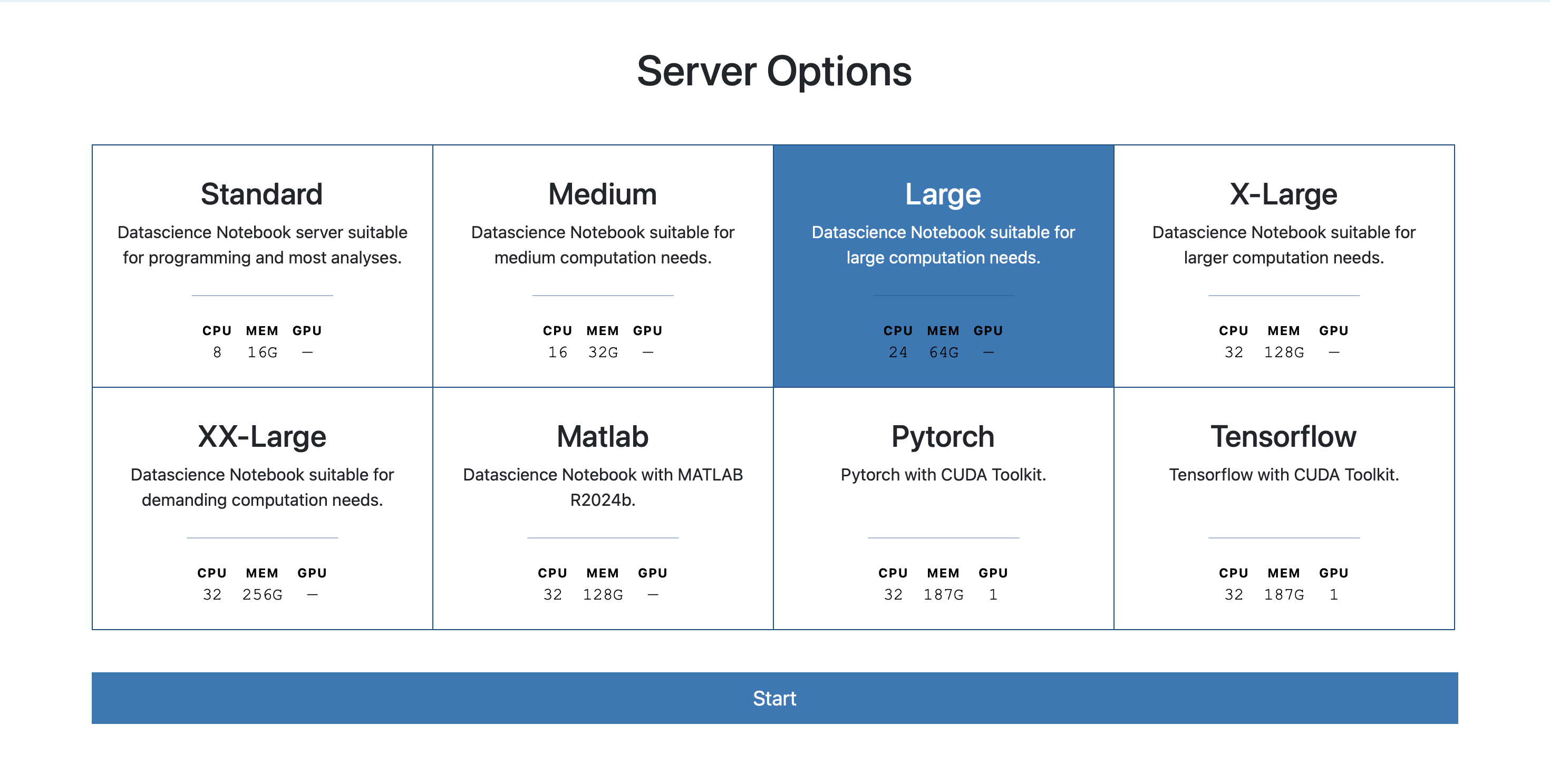
The next step is to choose the server size and type. Choose “Large” for the summer school:
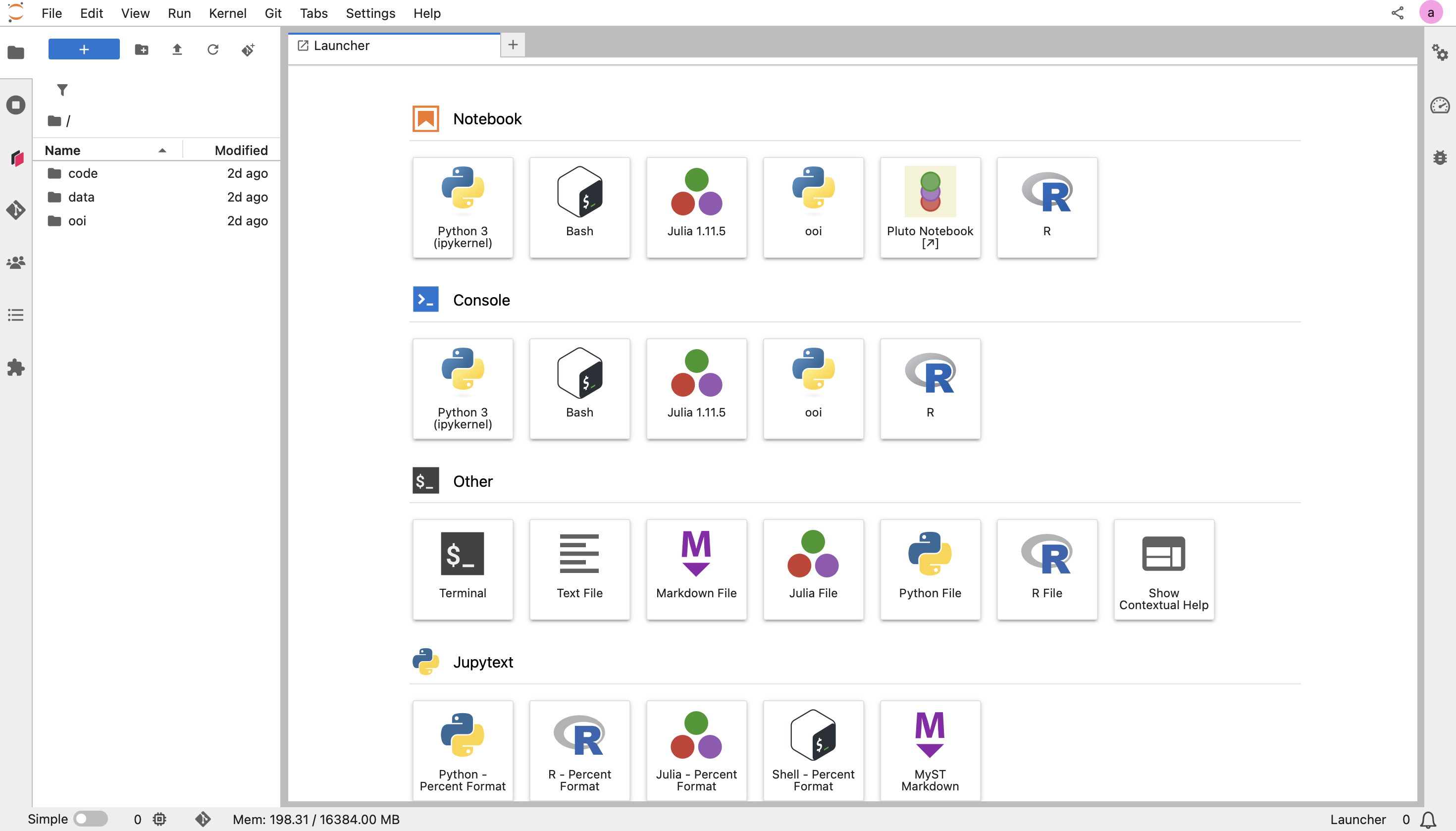
At this point, you should see a screen that looks like the one below. From the Launcher tab, select the “Terminal” launcher under the “Other” category. This is a Linux terminal running the bash shell which will be used extensively in the following steps.
Clone the summer school repository
The OOI Summer School on Acoustics will be sharing materials via a GitHub repository. Here we will be providing notebooks and instructions for participants to follow along. To download this repository into JupyterHub, we will use the git clone command.
First, go to the summer school repository and copy the URL by clicking the green <> Code button on the repo home page.
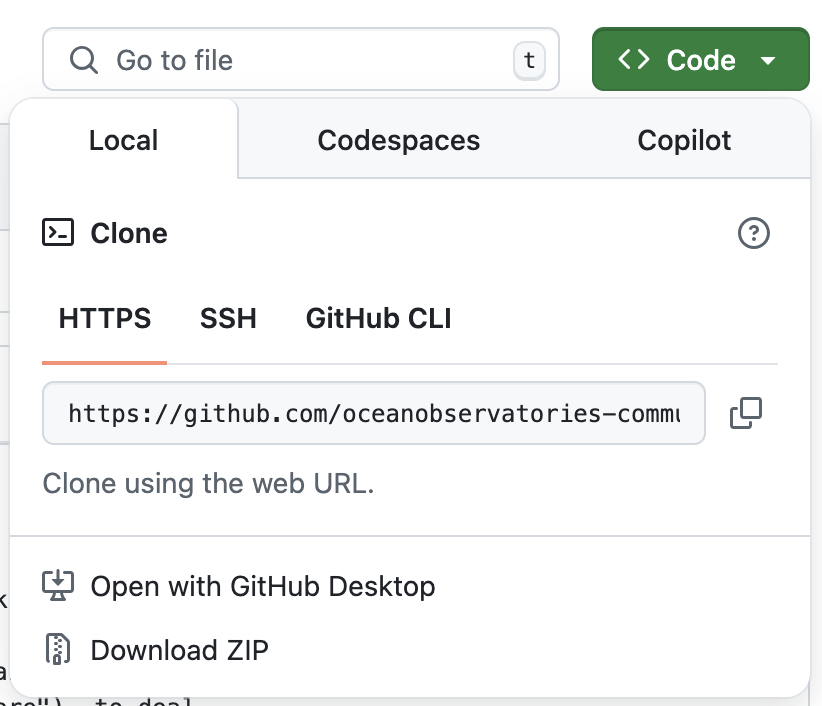
Then open the JupyterHub terminal and run the commands below to clone the GitHub repository.
git clone https://github.com/oceanobservatories-community/2025-Summer-School-Acoustics.git
You should now see a folder called 2025-Summer-School-Acoustics.git in your navigation window on the left.
Set up conda
Conda (or its recent cousin, Mamba) is an environment manager we will be using for this summer school. Using conda has the following benefits:
Isolation of dependencies
Reproducibility
Ease of management
Testing and development
To know more about conda and why we recommend it, visit Anaconda’s documentation.
The OOI JupyterHub requires some initial setup to make conda works. This setup only need to be completed once.
The steps can be completed by running the init_conda.sh script:
Run the initialization script in the JupyterHub terminal:
cd ~  # make sure you're in the home directory
cd 2025-Summer-School-Acoustics/scripts  # go into the scripts directory
bash init_conda.sh  # run the script
What’s in the script?
This bash script does the following:
Initializes bash by running the .bashrc file
Set terminal to run .bashrc at every start
Configure .condarc so it remembers and saves custom user environments
Create a conda environment
Now we will create a conda environment to run a test notebook that will load data from the OOI Gold Copy THREDDS
catalog. By creating an environment with specific packages, we make sure that we have all the required packages to run the example notebook, and that all the specified packages can work with each other (i.e., no dependency conflicts).
In the JupyterHub terminal:
Navigate to the
environment.ymlfile in the summer school repository and run the following command. This will take some time. Typeyand hitENTERwhen prompted if you want to install any packages.cd 2025-Summer-School-Acoustics # go into the summer school repo conda env create -f environment.yml
After the environment has been created, activate it:
conda activate ooi_acoustics
Register the environment as a Jupyter kernel so that you can use it in a notebook:
python -m ipykernel install --user --name=ooi_acoustics
Set up OOI data access credentials
In order to access data and/or metadata (e.g., calibration coefficients) collected from the OOI, we need to set up our access credentials. This setup only need to be completed once.
If you haven’t already done so, either create a user account on the OOI Data Portal (original OOI website and API server for the OOI M2M system), or use the CILogon button with an academic or Google account (login button is towards the upper right corner of the web page) to login to the portal.
After you login, the “Log In” text will change to your username.
Click on your username and then on the “User Profile” element of the drop down.
Copy and save the following values from the user profile:
API UsernameandAPI Token.
We will next create a .netrc file in our home directory to store these access credentials. Set up these access credentials by running the setup_ooi_creds.sh script.
In the JupyterHub terminal:
Navigate to the
scriptsdirectory in the cloned summer school repositorycd ~ cd 2025-Summer-School-Acoustics/scripts
Edit the
setup_ooi_creds.shscript to replaceAPI_UsernameandAPI_Tokenwith your copied values from above by double-clicking on thesetup_ooi_creds.shfile and editing it.Run the OOI access credentials setup script
bash setup_ooi_creds.sh
Now we can run the provided example notebook within the ooi-data-explorations folder to see if all the packages have been installed properly. On the JupyterHub, use the navigation window on the left to find and open the day01_phsen_data_access.ipynb notebook.
When you open a jupyter notebook, on the top right you can select the ipython kernel to be the conda environment that we just created. Click on Python 3 (ipykernel) and change it to the ooi_acoustics environment we just created.
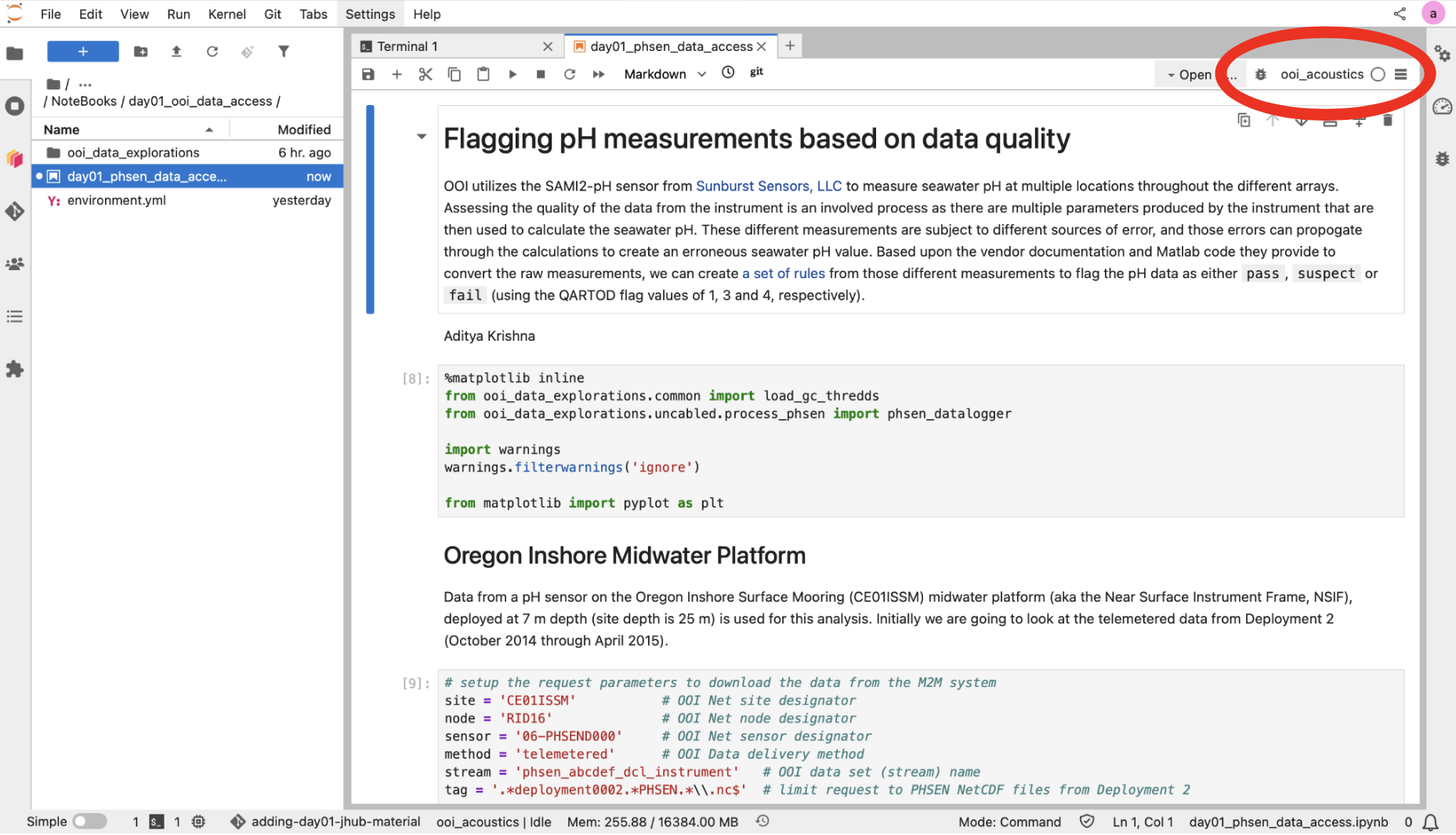
Jupyter notebooks allow users to have cells containing Markdown notes along with cells containing code and code outputs. Each of these can be minimized or expanded. Let’s all add our names to the top of the notebook by creating a Markdown cell.
This example notebook simply loads and plots data from the OOI Gold Copy THREDDS catalog. The data is stored here which is data from a pH sensor on the Oregon Inshore Surface Mooring (CE01ISSM) midwater platform (aka the Near Surface Instrument Frame, NSIF), deployed at 7 m depth (site depth is 25 m). Furthermore, this is telemetered data from Deployment 2 (October 2014 through April 2015).